
Table of Contents
🎨 Introduction: The UI Design Bottleneck
I’ve spent most of my career building mobile apps. SwiftUI on one side, Jetpack Compose on the other, and somewhere in between, a massive amount of time spent fighting tiny UI details that no one outside the development team ever seems to notice. Spacing. Alignments. State updates. Navigation edge cases. Things that seem small until they eat half your day.
Recently, however, I decided to shift gears. I wanted to explore a different kind of speed in building interfaces. The web, especially right now, feels like the most interesting place to experiment with AI-assisted development. You can go from an idea to something visible incredibly fast.
But that experiment taught me something crucial: generating code is no longer the hardest part. The real bottleneck is often the step before the code. It’s figuring out what the user interface should even look like. That “blank canvas” moment is still where a lot of initial momentum dies. Even if you’re an expert at building apps, there’s a lot of friction between “I have an idea” and “I have something I can actually implement.”
You think about the design, the hierarchy, the sections, the user flow, the component structure, and whether the screen you have in mind will even make sense once it becomes real.
That is exactly where Google Stitch comes into play.
When I first heard about this tool from Google Labs (originally announced at Google I/O 2025 and aggressively evolved leading up to today in 2026), my reaction was a mix of skepticism and curiosity. A tool that can generate UI from text prompts or sketches? It sounded too good to be true. But after months of using it in production environments, specifically focused on Android with Kotlin and Jetpack Compose, it has fundamentally changed how I build apps.
Throughout this extensive article, we will dive deep into what Google Stitch is, how it works, practical examples (both mobile and web), advanced tricks, and most importantly, how to integrate it into your daily Android development workflow.
🧵 What exactly is Google Stitch?
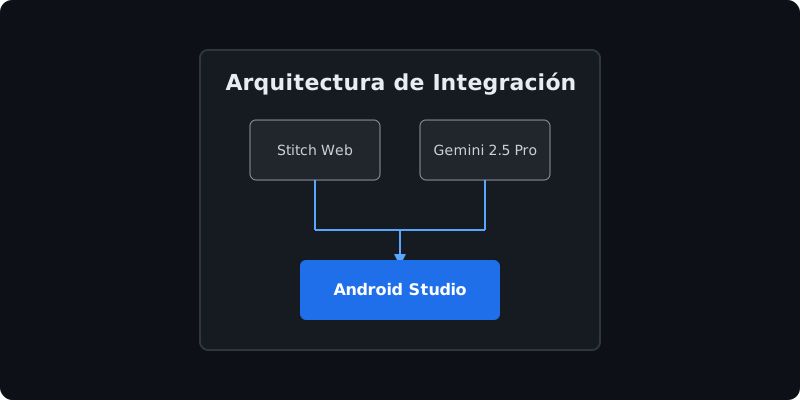
Google Stitch isn’t simply another “code generator.” It is an AI-driven design environment powered by the Gemini family of models (specifically optimized with Gemini 2.5 Pro for high fidelity and Gemini 2.5 Flash for rapid iteration).
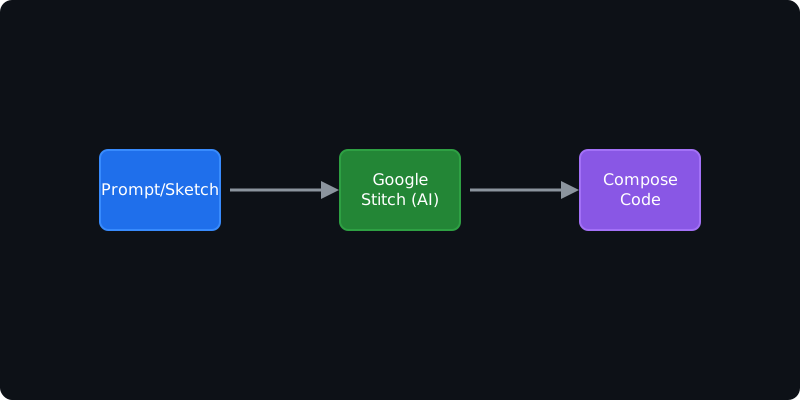
Its core premise is astonishingly simple: you describe what you want, give it a sketch, upload a screenshot, or even use voice commands, and Stitch returns a complete, high-fidelity UI design, with the frontend code ready to export.
The Problem it Solves
For freelance developers or small teams, a huge portion of time at the start of a project is spent on:
- Creating wireframes.
- Making color palette decisions.
- Establishing the typography and spacing system.
- Building static screens (Mockups) in tools like Figma.
Clients (or Product Managers) want to see something before they commit, which makes sense, but it means you spend a lot of time in the design phase before touching the interesting business logic in Kotlin.
Stitch attempts to almost entirely eliminate that intermediate step.
Key Features in 2026
- Multimodal Generation: You can start the process from text, images (inspiration screenshots), or hand-drawn sketches on a napkin.
- Multi-Platform Export: Initially focused on the web (HTML/CSS/React), integration with Jetpack Compose for Android is now first-class.
- Direct Edit: You don’t just generate and accept. You can select a specific component (e.g., a button) and ask Stitch: “Make this button follow Material Design 3 guidelines with rounded corners and an icon on the left.”
- Design Systems: You can teach Stitch your brand rules (primary colors, fonts, border radii) so everything generated maintains visual consistency.
🛠️ Getting Started with Google Stitch
Stitch runs directly in the browser (at stitch.withgoogle.com). You don’t need to install anything. You log in with your Google account and are greeted by an empty canvas, ready for your ideas.
The First Experiment: A To-Do App
To illustrate its use, let’s create the interface for a “Daily Task Management” app.
The Initial Prompt:
“Design the main screen of a mobile to-do app for Android. Use a dark theme (Dark Mode). It should have a top bar with a greeting to the user and their profile picture. Below that, a progress summary (e.g., ‘5 of 8 tasks completed’) with a circular progress bar. The main body should be a list of task cards. Each card must have a title, short description, time, and a checkbox. Add a Floating Action Button (FAB) at the bottom right to add new tasks. Use accent colors inspired by Material You (pastel tones on dark background).”
In less than a minute, Stitch generates several variants. Each interprets the layout slightly differently. Once you select the one you like best, the real magic happens: the code export panel.
You select the Android (Jetpack Compose) mode, and the result is Kotlin code that is almost production-ready.
Evaluating the Generated Code (Jetpack Compose)
Here is a (simplified) snippet of what Stitch might generate for the task card:
import androidx.compose.foundation.background
import androidx.compose.foundation.layout.*
import androidx.compose.foundation.shape.RoundedCornerShape
import androidx.compose.material3.*
import androidx.compose.runtime.Composable
import androidx.compose.ui.Alignment
import androidx.compose.ui.Modifier
import androidx.compose.ui.draw.clip
import androidx.compose.ui.graphics.Color
import androidx.compose.ui.text.font.FontWeight
import androidx.compose.ui.tooling.preview.Preview
import androidx.compose.ui.unit.dp
import androidx.compose.ui.unit.sp

@Composable
fun TaskCard(
    title: String,
    description: String,
    time: String,
    isCompleted: Boolean,
    onCheckedChange: (Boolean) -> Unit
) {
    Card(
        modifier = Modifier
            .fillMaxWidth()
            .padding(vertical = 8.dp),
        shape = RoundedCornerShape(16.dp),
        colors = CardDefaults.cardColors(
            containerColor = MaterialTheme.colorScheme.surfaceVariant
        ),
        elevation = CardDefaults.cardElevation(defaultElevation = 2.dp)
    ) {
        Row(
            modifier = Modifier
                .padding(16.dp)
                .fillMaxWidth(),
            verticalAlignment = Alignment.CenterVertically
        ) {
            Column(
                modifier = Modifier.weight(1f)
            ) {
                Text(
                    text = title,
                    fontSize = 18.sp,
                    fontWeight = FontWeight.Bold,
                    color = MaterialTheme.colorScheme.onSurface
                )
                Spacer(modifier = Modifier.height(4.dp))
                Text(
                    text = description,
                    fontSize = 14.sp,
                    color = MaterialTheme.colorScheme.onSurfaceVariant
                )
                Spacer(modifier = Modifier.height(8.dp))
                Text(
                    text = time,
                    fontSize = 12.sp,
                    color = MaterialTheme.colorScheme.primary
                )
            }

            Checkbox(
                checked = isCompleted,
                onCheckedChange = onCheckedChange,
                colors = CheckboxDefaults.colors(
                    checkedColor = MaterialTheme.colorScheme.primary
                )
            )
        }
    }
}

@Preview
@Composable
fun TaskCardPreview() {
    MaterialTheme {
        TaskCard(
            title = "Code Review",
            description = "Review PRs from the frontend team",
            time = "10:00 AM",
            isCompleted = false,
            onCheckedChange = {}
        )
    }
}
Code Analysis
- It’s idiomatic: It correctly uses modifiers (
Modifier.weight,Modifier.padding). - Material Design 3: It utilizes proper color tokens (
surfaceVariant,onSurface,primary) instead of hardcoded static colors. - Componentization: It separates logic correctly and adds a
@Previewfunction, which is fundamental in the modern Android Studio workflow.
🧩 Integration into the Professional Workflow
This is where I want to dive deep. How does Google Stitch fit into the actual workflow for building quality apps? We’re not talking about quick prototypes, but robust applications maintained by teams.
1. The “Rapid Ideation” Phase (Rapid Prototyping)
Before, the cycle was: Idea -> PM makes a wireframe in Balsamiq -> Designer makes it in Figma -> Developer implements it.
With Stitch, the cycle can be: Idea -> PM/Developer inputs prompt into Stitch -> Compose is exported to a test branch -> The real app is evaluated on a device within hours.
This drastically reduces the “Time to First Pixel” (the time until the first interactive pixel is seen).
2. The Iterative “Design to Code” Pattern
The biggest problem with “Design to Code” tools of the past (like Zeplin or early Figma plugins) is that they generated absolutely unusable code (absolute X/Y positions, weird spacing, randomly generated class names).
Stitch understands semantic layout. It understands that a list of items in Android should be a LazyColumn, not a set of Rows with absolute margins.
The ideal flow:
- Generate the base screen in Stitch.
- Export to Android Studio.
- Refactor state management: Stitch will give you static variables or simple state. Your job is to connect that to your
ViewModels, flows (StateFlow), and data architecture (Clean Architecture, MVVM). - Fine-tuning: Tweak specific animations or detailed accessibility that the AI might have missed.
3. Maintaining a Consistent Design System
One of the hidden gems of Stitch is its ability to understand a “Design System”.
In Kotlin, you typically have a Theme.kt, Color.kt, and Type.kt file. You can feed Stitch your theme rules. If you tell it: “Use our ‘Ocean UI’ design system, where primary is #0055FF and the font is Roboto”, the Jetpack Compose export will directly utilize your tokens.
🚀 Advanced Guides and Tricks for Android
If you’re going to use Stitch seriously for Android, here are the tactics that have saved me countless hours.
Trick 1: Architecture-Specific Prompts
Don’t just ask Stitch for “a screen.” Ask it to structure the code with your architecture in mind.
Advanced Prompt:
“Generate a User Profile screen in Jetpack Compose. Separate the UI components (Header, SettingsList, LogoutButton) into independent @Composable functions within the same file. The main screen (ProfileScreen) should receive a state class (data class ProfileUiState) and an event object (interface ProfileEvents) to handle clicks, preparing it for a UDF (Unidirectional Data Flow) pattern with a ViewModel.”
Stitch will generate the necessary interfaces and data classes, leaving you with a perfect structure to hook up your ViewModel.
Trick 2: The Power of Localized Editing (Direct Edit)
Sometimes, the screen is 90% perfect, but one list looks wrong. Don’t regenerate the whole screen. Use the selection tool, mark the list container, and say:
“Change this container to be a LazyRow (horizontal scroll) instead of a LazyColumn. Add a horizontal contentPadding of 16.dp and a horizontalArrangement with a spacing of 8.dp.”
Stitch will rewrite only that portion of the Compose code.
Trick 3: Image to Compose (UI Cloning)
This is perhaps the most “magical” use case. You find an interesting UI pattern on Dribbble or in another app, take a screenshot, upload it to Stitch, and state:
“Recreate this interface using Jetpack Compose and Material 3. Ignore specific data and use placeholders (lorem ipsum, gray images).”
It’s excellent for learning how to structure complex layouts (like irregular grids or custom navigation bars).
🌐 A Quick Look at Web Examples
While my primary focus is Android, I can’t ignore how useful Stitch is for the web. In fact, its underlying initial rendering engine is heavily based on web technologies.
If you need to build an internal admin panel (Dashboard) to back your mobile app, Stitch shines here.
Web Prompt Example:
“Create a web admin dashboard with React and Tailwind CSS to manage users of a mobile app. I need a dark left navigation sidebar, and a central data table with columns for Name, Email, Status (Active/Inactive with colored badges), and an Action button. Make it responsive (the sidebar turns into a hamburger menu on mobile).”
The resulting React code with Tailwind CSS is usually impeccably clean and responsive. This allows mobile developers (who might not be experts in CSS flexbox/grid) to spin up internal web tools in hours rather than days.
🛡️ Limits and Considerations (Where AI still stumbles)
To keep this article objective, let’s talk about where Stitch is not perfect.
1. Complex Business Logic
Stitch designs views (UI). It will not write your persistence logic with Room Database, nor your network calls with Retrofit or Ktor. Your underlying architecture remains 100% your responsibility. And it’s better that way; you wouldn’t want an AI hallucinating your app’s financial logic.
2. Advanced Animations
Jetpack Compose is extremely powerful for custom animations (using updateTransition, animateContentSize, etc.). Stitch tends to generate static UIs or very basic animations. Fluid micro-interactions still require the human touch and a developer’s expertise.
3. Deep Accessibility (a11y)
Although Stitch adds basic contentDescription to images, it doesn’t comprehend complex TalkBack navigation flows. It is vital to perform a manual accessibility audit and use tools like Accessibility Scanner on the generated code.
4. Component Fragmentation
Sometimes, Stitch can generate “spaghetti code blocks” if the screen is very complex (300-line Composable functions). Always apply good refactoring practices and split screens into smaller, reusable components.
🎓 How to Learn to “Speak” to Stitch (UI Prompt Engineering)
Success with generative tools depends on your ability to communicate precisely. Here is a basic taxonomy of how to structure your requests:
- Role / Context: “Act as an expert UX/UI designer in Material Design 3…”
- Platform / Stack: “…for an Android application using Jetpack Compose.”
- General Description: “Design a ‘Product Detail’ screen.”
- Hierarchical Structure: “It must contain: 1. A top image carousel. 2. Title and price. 3. Expandable description block. 4. A sticky bottom button for ‘Add to Cart’.”
- Style Constraints: “Use consistent spacing in multiples of 8dp. Avoid using absolute colors, use only MaterialTheme tokens.”
🔮 The Future of Frontend and Mobile Development
Google Stitch represents a massive paradigm shift. It’s not going to “take the jobs” of UI/UX developers, but it is going to drastically raise the baseline.
The friction of going from “idea” to “functional screen on a device” is disappearing.
For Android developers (and Kotlin Multiplatform developers in the future), this means we will spend less time measuring margins and aligning text, and much more time:
- Designing robust, scalable architectures.
- Optimizing performance (memory, rendering).
- Integrating artificial intelligence within apps (like Gemini Nano running on-device).
- Fine-tuning the user experience (UX) to levels we previously didn’t have time to achieve.
Stitch is the perfect Pair Programming partner for interface design. It gives you the scaffolding, the blocks, and the cement; you remain the architect who ensures the building doesn’t fall down and that it is a joy to inhabit.
📝 Conclusion
If you are building apps today, whether with Jetpack Compose for Android or React for the web, you owe it to yourself to give Google Stitch a try. Don’t view it as a threat, view it as an exoskeleton that allows you to move the heavy load of repetitive UI design much faster.
In the hyper-competitive software development world of 2026, iteration speed is everything. And tools like Stitch are the warp drive that lets us arrive at our destination sooner: delivering real value to users.
(If you found this article interesting, be sure to read our other deep dives into AI-assisted development and modern Android architectures on this very blog).
🧬 Deep Dive: State Architecture with Stitch
One of the biggest challenges in adopting tools like Google Stitch is not generating the UI, but how that UI integrates with the complex state of a real-world application. Let’s explore a more advanced scenario.
The Problem of Coupled State
When you generate a complex screen, for example, an interactive shopping cart, Stitch will provide a beautiful UI. However, by default, it might initialize local states using remember { mutableStateOf(...) } directly inside the components.
// What Stitch might generate (Simplified and not ideal for scalability)
@Composable
fun ShoppingCartItem(item: Item) {
    var quantity by remember { mutableIntStateOf(item.quantity) }

    Row {
        Text(item.name)
        Button(onClick = { quantity-- }) { Text("-") }
        Text(quantity.toString())
        Button(onClick = { quantity++ }) { Text("+") }
    }
}
This is fine for a prototype, but it is a nightmare for maintenance. It breaks the Single Source of Truth principle, since the real state of the cart probably lives in a local database (Room) or on a server, managed by a ViewModel.
The Solution: Prompt Hacking for Clean Architecture
The ultimate trick is to teach Stitch how it should structure your components. We call this “Architecture-Based Prompting”.
Instead of simply asking for the design, we structure the prompt like this:
“Design a Shopping Cart screen in Jetpack Compose.
STRICT ARCHITECTURAL RULES:
- All @Composable functions must be ‘Stateless’ (no internal state). Do not use ‘remember’ or ‘mutableStateOf’.
- Pass data through a ‘CartUiState’ data class containing a list of ‘CartItemUiState’.
- Pass all user events (clicks on add/subtract buttons, remove item) upwards using lambdas (e.g., onIncrementQuantity: (Int) -> Unit).
- The top main screen must accept the ‘CartUiState’ and the event lambdas.”
The result drastically changes the quality of the emitted code. You’ll get something like this:
// Generated code optimized for UDF (Unidirectional Data Flow)
data class CartItemUiState(
    val id: String,
    val name: String,
    val price: Double,
    val quantity: Int
)

data class CartUiState(
    val items: List<CartItemUiState> = emptyList(),
    val isLoading: Boolean = false,
    val totalAmount: Double = 0.0
)

@Composable
fun ShoppingCartScreen(
    state: CartUiState,
    onIncrementQuantity: (String) -> Unit,
    onDecrementQuantity: (String) -> Unit,
    onRemoveItem: (String) -> Unit,
    onCheckout: () -> Unit
) {
    if (state.isLoading) {
        CircularProgressIndicator()
        return
    }

    Column(modifier = Modifier.fillMaxSize()) {
        LazyColumn(modifier = Modifier.weight(1f)) {
            items(state.items, key = { it.id }) { item ->
                CartItemRow(
                    item = item,
                    onIncrement = { onIncrementQuantity(item.id) },
                    onDecrement = { onDecrementQuantity(item.id) },
                    onRemove = { onRemoveItem(item.id) }
                )
            }
        }
        CheckoutFooter(
            totalAmount = state.totalAmount,
            onCheckoutClick = onCheckout
        )
    }
}

@Composable
fun CartItemRow(
    item: CartItemUiState,
    onIncrement: () -> Unit,
    onDecrement: () -> Unit,
    onRemove: () -> Unit
) {
    // Purely visual UI row implementation...
}
Boom! Now you have a perfectly decoupled UI. You can go to your IDE, paste this code, and instantly connect it to your ViewModel that exposes a StateFlow<CartUiState>.
// Your hand-written code (Integration)
@Composable
fun ShoppingCartRoute(
    viewModel: CartViewModel = hiltViewModel()
) {
    val uiState by viewModel.uiState.collectAsStateWithLifecycle()

    ShoppingCartScreen(
        state = uiState,
        onIncrementQuantity = viewModel::incrementQuantity,
        onDecrementQuantity = viewModel::decrementQuantity,
        onRemoveItem = viewModel::removeItem,
        onCheckout = viewModel::processCheckout
    )
}
This is the professional way to use AI: delegate the repetitive visual layout work, but impose your rigid architectural standards.
📱 Accessibility (a11y) and Stitch: A Critical Audit
One of the pillars of mobile development in 2026 is ensuring that applications are accessible to all users. How does Stitch behave in this critical aspect?
The reality is that Stitch, on its own, generates “basic” accessibility but it is insufficient for commercial-grade applications.
What Stitch does well:
- Generates
contentDescriptionparameters on image and icon components (though it sometimes fills them with generic strings). - Typically uses implicit basic grouping semantics in native Compose containers (
Column,Row). - Uses Material token colors, which usually guarantees good contrast if your theme is well-designed.
What Stitch ignores (and you must fix):
- Touch Targets: Often generates clickable buttons or icons that are smaller than the minimum 48x48 dp standard recommended by Google. You’ll need to add
Modifier.minimumInteractiveComponentSize(). - Advanced Semantics (Merge Descendants): In a complex contact card, a screen reader (TalkBack) will read the name, then pause, read the title, pause, read the email. This is frustrating for the user.
- Live Regions: If the screen generates dynamic content without changing focus, it doesn’t correctly notify accessibility services.
The Manual Correction Flow
After importing Stitch code, my immediate step is the “accessibility review.” I modify complex cards to merge semantics:
// Before (Generated by Stitch)
Card(modifier = Modifier.clickable { onClick() }) {
    Column {
        Text("John Doe", fontSize = 20.sp)
        Text("Software Engineer", fontSize = 14.sp)
    }
}

// After (Manually optimized for a11y)
Card(
    modifier = Modifier
        .clickable(
            onClickLabel = "View profile of John Doe",
            onClick = onClick
        )
        .semantics(mergeDescendants = true) {} // Crucial merge
) {
    Column {
        Text("John Doe", fontSize = 20.sp)
        Text("Software Engineer", fontSize = 14.sp)
    }
}
With mergeDescendants = true, TalkBack will read “John Doe, Software Engineer. Double-tap to view profile of John Doe” as a single fluid element.
This underscores the main point of the article: Stitch is an accelerating tool, not a replacement for expert engineering.
🌍 The Impact on the Web Frontend Ecosystem
While the primary focus of this article has been Android and Jetpack Compose, it would be unfair to ignore the immense impact Google Stitch is having on the web development ecosystem.
For many backend or mobile developers, building a modern web application (React, Vue, Svelte) can be a frustrating exercise in configuration, webpack (or Vite), modular CSS management, and DOM quirks.
Stitch shines brightly here by offering clean exports of semantic HTML combined with Tailwind CSS.
Example: Creating an Admin Panel (Backoffice)
Let’s imagine we are developing the web administration panel for our task management app. We need a table view with filtering capabilities and basic charts.
The prompt in Stitch might be:
“Generate a web admin dashboard for a SaaS application. Use a full-width design. I need a left navigation sidebar (dark) and a main content area on the right (very light gray background). In the top content area, include three summary cards (Total Users, Active Tasks, Revenue). Below, a spacious data table showing recent users with their avatars, names, status (green/red colored badges), and an options button. Apply Tailwind CSS classes directly to the HTML elements.”
The result is a block of HTML/Tailwind code that, if you paste it into a static file or a React component, works and looks incredibly modern instantly.
Why does this matter for mobile developers?
As software engineers, we are often asked to “build a quick internal tool” to manage the app’s data. Before, this meant looking for complex paid web templates or spending days fighting with CSS.
With Stitch, you can generate your Backoffice views in hours, connect them to your API (perhaps written in Ktor or Node.js), and go back to focusing on the native mobile app, which is where you truly provide the most value.
Additionally, Stitch handles Responsive Web Design (RWD) surprisingly well. By asking it to use Tailwind CSS, it usually inserts md: and lg: classes correctly so that the sidebar collapses on small screens.
🛠️ Beyond the Code: Stitch and Design Systems
One of the most underrated features of Google Stitch in enterprise environments is its ability to internalize and apply an existing Design System.
In a large company, designers spend months creating Figma libraries full of color tokens, typographic scales, and standardized components. The historical problem has been translating that into code in a way that developers actually use consistently.
The “Theme Prompting” Approach
Stitch allows you to define “contexts” or “base themes.” You can feed it a JSON file or other structured description of your design system.
Imagine this scenario. You have a configuration file that defines your brand:
- Primary Color:
#8A2BE2(Purple) - Secondary Color:
#00FA9A(Spring Green) - Font Family:
Inter - Border Radius:
12px
You pass this context to Stitch and ask: “Generate a login screen using the provided brand theme”.
The generated Compose code will no longer use default Material 3 grays. It will utilize your tokens.
// Intelligent generation respecting the design system
Button(
    onClick = { /* login */ },
    colors = ButtonDefaults.buttonColors(containerColor = BrandColors.Primary), // Direct reference
    shape = RoundedCornerShape(BrandShapes.RadiusLarge) // Direct reference
) {
    Text("Login", fontFamily = BrandTypography.InterBold)
}
This immensely reduces friction between the design team and the development team. Developers no longer have to play “guess the color” or use eyedropper tools to verify margins. The AI acts as a bridge, ensuring the initial code complies with brand guidelines from the very first second.
📚 The Future of the Human-Machine Interface
As we move deeper into 2026 and observe the rapid evolution of tools like Google Stitch, GitHub Copilot, and deep reasoning models, a fundamental question arises about the nature of our work.
What is the role of the frontend or mobile developer in the next five years?
The answer isn’t “disappear,” but evolve toward orchestration.
We are transitioning from being “UI code stonecutters” (writing blocks of Row and Column manually) to becoming “orchestra conductors.” Our primary tools are no longer just the keyboard and the IDE, but the ability to:
- Formulate clear intentions (UI Prompt Engineering): Knowing exactly how to ask for the right interface, with the correct architectural constraints.
- Validate and Audit: Evaluating the generated code in terms of accessibility, performance, and compliance with corporate standards.
- Integrate Complex Systems: Safely connecting the generated UI with underlying business logic, local databases (SQLite/Room), and asynchronous networks, managing edge cases (network errors, offline states) that visual AIs cannot anticipate.
Google Stitch is irrefutable proof that the pure visual layer of applications is being solved (“commoditized”). A software engineer’s true value now lies in overall system architecture, security, data persistence (as we have seen in articles on hierarchical memory), and the general user experience (120fps animation performance, zero-latency network operations).
Final Words
Adopting Google Stitch in your Android or web development workflow is not admitting defeat nor a sign of laziness. It is the intelligent adoption of cutting-edge technology to amplify your capabilities. It frees you from tedious and repetitive work, giving you the mental space necessary to solve truly difficult and interesting engineering problems.
I encourage you to open a test project this weekend. Try generating a complex screen that you’ve always been too lazy to mock up manually. Look at the code Stitch gives you back. Modify it, integrate it, and experience the “Aha!” moment. App development will never be the same again.
(Stay tuned for our upcoming posts where we will explore how to integrate on-device local databases with these multimodal models for truly offline-first applications!)
You might also be interested in

design.md: The New Standard for AI-Assisted UI/UX Design
Discover how design.md complements agents.md, focusing on design decisions, UI/UX, accessibility, and Jetpack Compose for Android development in the era of AI agents.

Socratic Prompting: Maieutic Reasoning in Mobile Dev
Avoid 'almost correct' code in Android & iOS. Master Socratic and Maieutic prompting with Gemini, Copilot, and Cursor using dialog flows and source code.
Loop Engineering
Discover how Loop Engineering is replacing traditional prompting. Learn to design autonomous systems for mobile development with Kotlin and Android, managing risks and optimizing resources.