
Compose Navigation Graph: Visualize and Master Android Navigation

Table of Contents
Throughout my years building Android applications, I’ve consistently encountered a significant pain point when scaling user interfaces: figuring out where the hell my navigation flows are heading. When we develop independently (as a solopreneur or indie dev), every minute spent tracing lambdas and deciphering backStack.add(...) calls scattered across multiple modules is a minute taken away from iterating on the core product essence.
Today I want to talk about one of those hidden gems in the Android ecosystem that changes the game. A tool that cures navigation blindness in Jetpack Compose: Compose Navigation Graph by skydoves (Jaewoong Eum).
If you have ever tried to reconstruct the flow of your app in your head by reading dozens of composable("route") { ... } blocks, this article is for you.
The Pain of Navigation in Jetpack Compose
Before Compose, we had XML navigation files (nav_graph.xml). Yes, they were a bit cumbersome to maintain, but they had one undeniable advantage: the Navigation Editor in Android Studio. You could open a file and literally see the screens, the connectors, and the actions.
With Jetpack Compose, we adopted a Code-First approach for everything, including navigation. We write our NavHost, we define our routes in code, and navigation becomes entirely dynamic and imperative.
// The current state of navigation in many of our apps
NavHost(navController = navController, startDestination = "home") {
    composable("home") {
        HomeScreen(
            onNavigateToProfile = { userId ->
                navController.navigate("profile/$userId")
            }
        )
    }
    composable(
        route = "profile/{userId}",
        arguments = listOf(navArgument("userId") { type = NavType.StringType })
    ) { backStackEntry ->
        val userId = backStackEntry.arguments?.getString("userId")
        ProfileScreen(userId = userId)
    }
}
The fundamental problem here is that all the information defining the navigation graph structure is locked inside function bodies. Static processors like KSP or KAPT cannot read the dynamic content of imperative code (function bodies and lambdas). Therefore, there is no native way to “see” our graph without running the application.
As an indie developer working on my ArceApps or PuzzleHub projects, I’ve suffered trying to remember why I modified a route three months ago, or in which feature module the entry point for a specific view was located.
Compose Navigation Graph: The Elegant Solution
Compose Navigation Graph (and its companion IntelliJ/Android Studio plugin) tackles this problem at its root using declarative annotations that can be statically interpreted at compile time using KSP.
The brilliant thing about this approach is that it doesn’t change how you navigate. It doesn’t force you to switch libraries (it works with Navigation Compose 2, Navigation Compose 3, Voyager, or even plain Activities). It just asks you to describe your graph so its tools can draw it.
The Toolkit Architecture
The ecosystem consists of four cooperating pieces:
- Annotations (
compose-nav-graph-annotations):@NavDestination,@NavEdge,@NavPreviewand@NavGraphRoot. This is your descriptive language in code. - KSP Processor (
compose-nav-graph-ksp): Statically extracts the graph information from each module into anav-graph.jsonfile at compile time. - Gradle Plugin (
com.github.skydoves.navgraph): Renders thumbnails of your@Previewsusing Layoutlib (no emulator required), merges graphs across modules, and provides key tasks. - IDE Plugin (
compose-nav-graph-idea): The interactive canvas in Android Studio where visual magic happens.
How to Get Started? Basic Setup
Adding this to your project is incredibly straightforward. In the build.gradle.kts file of the module housing your screens:
plugins {
    id("com.google.devtools.ksp") version "1.9.24-1.0.20" // Adjust to your Kotlin version
    id("com.github.skydoves.navgraph") version "0.1.2"
}

// Optional configuration
navgraph {
    renderThumbnails.set(true)
    galleryEnabled.set(true)
}
Hold on, this is crucial. Notice that you are not injecting heavy runtime dependencies. It is purely tooling.
Annotating Your World
The adoption process involves decorating your components. If you already have Navigation 3 Route classes (those implementing interfaces or serializable classes), the plugin automatically captures much of the information. For full control (and backward compatibility), you use annotations.
@NavGraphRoot // Marks the start of the whole flow
@NavDestination(route = HomeRoute::class) // The node
@NavEdge(to = ProfileRoute::class, label = "Open Profile") // The transition
@Composable
fun HomeScreen() {
    // Your UI here...
}

@NavPreview(route = HomeRoute::class, primary = true)
@Preview
@Composable
fun HomeScreenPreview() {
    // The preview of your UI
}@NavDestination: Binds your Composable to a “Route”. KSP reads theHomeRouteclass (or whatever name you provide) and extracts its properties as required arguments.@NavEdge: Draws the arrow. It indicates where you are going from this origin.@NavPreview: This is spectacular. It links your classic Compose@Previewwith the navigation node, meaning the plugin will render the thumbnail and place it directly on the map.
The Living Map
Once you have installed the plugin from the JetBrains Marketplace in Android Studio and run the Gradle sync task, the tool opens a side window.
That is where the pain vanishes. You see your entire application mapped, merged across modules. If you have a feature module :feature-feed pointing to :feature-profile, the plugin crosses the boundaries and draws the connection.
You can double-click on any node and jump straight to the code. You can see at a glance what arguments (userId: String) that specific screen expects, depicted in UML style.
Bidirectional Visual Editing
But it doesn’t stop at a “read-only” view. If you select a node on the graph canvas and drag the connector to another node, the IDE plugin will use JetBrains’ PSI (Program Structure Interface) API to write the annotation into your source code. It is bidirectional.
You say: “I want to go from A to B,” and the IDE inserts @NavEdge(to = B::class) into your HomeScreen.
The End of Invisible Regressions: Navigation Baseline
As a software engineer building solo projects, accidental regressions are a constant worry. You change an argument, drop a link, and boom—runtime crash.
Skydoves has implemented a brilliant feature modeled after apiDump called Navigation Validation.
It works by generating a baseline (.nav) file that you commit to your Git repository. This file contains a plain-text, human-readable description of your graph.
dest Home  start
dest Profile  args=(userId: String)
edge Home -> Profile
When you set this up in CI (Continuous Integration), the ./gradlew :app:navCheck task reads the current graph and compares it against the .nav baseline. If someone broke a route or modified a critical argument, the build fails and shows you exactly the diff:
navgraph: navigation graph changed — app/nav/app.nav is out of date:

  - edge Home -> Settings
  + dest Onboarding
  + edge Home -> Onboarding  "first run"
No more navigation changes slipping through without explicit code review.
KMP, Out-Of-The-Box Support, and Final Thoughts
The tooling is ready for Kotlin Multiplatform (KMP) out of the box. Annotations reside in commonMain. If your KMP module includes Android, the processor will leverage Layoutlib and merged resources to render device-free thumbnails. If you don’t use Android (pure iOS, JS, or WASM), it extracts the graph structure into nodes and arrows (without the thumbnail image).
In an environment where agility is vital, tools like Compose Navigation Graph are not just visual novelties; they are technical debt shock absorbers. They restore the high-level visibility we sacrificed by embracing Compose’s imperative code-based model, while maintaining all its declarative power at runtime.
This is true software craftsmanship in developer tooling, and as independent developers, it’s exactly the kind of productivity leverage we need to maximize our time and impact.
References and Useful Links
- Compose Navigation Graph: Visualize Your Entire App Flow in Android Studio (Dove Letter)
- Official GitHub Repository (skydoves)
- Official Plugin Documentation
Diving into Graph Generation: Under the Hood
One of the most fascinating aspects of this plugin is how it manages to bypass the technical limitations we mentioned at the beginning. As developers, understanding the “how” gives us a deeper appreciation for the tools we use daily.
When we execute the ./gradlew :app:generateNavGraph task, the system isn’t simply searching for strings in our files using regular expressions. It is employing KSP (Kotlin Symbol Processing) masterfully. KSP builds an Abstract Syntax Tree (AST) of our Kotlin code. By placing our @NavDestination and @NavEdge annotations, we are injecting static “markers” into that tree.
Skydoves’ processor traverses this tree. When it encounters a @NavDestination(route = HomeRoute::class), it doesn’t just take note of the route. It examines the HomeRoute class itself. If it’s a data class or a regular serializable class (as required by Navigation 3), it inspects its primary constructors, properties, and default values. All this type introspection is what allows the node on the visual map to display exactly what arguments that screen needs, without executing a single line of business logic.
It is a brilliant use of metaprogramming applied to Developer Experience (DX). And most importantly: this extraction is fast. By operating at the KSP level, it integrates into the compilation flow without adding the immense processing overhead that would be involved in, for example, trying to interpret code at runtime or standing up complex Spring/Dagger contexts.
”Device Free” Rendering with Layoutlib
The other key piece of the puzzle is how we get those beautiful previews (thumbnails) of our screens directly on the graph canvas. Historically, rendering Android UIs outside of a physical device or emulator has been a monumental challenge due to the heavy reliance on the Android framework (android.jar).
This is where the plugin leverages Layoutlib. For those unfamiliar, Layoutlib is essentially the engine that powers Compose @Preview annotations inside Android Studio. It is a modified version of the Android framework specifically designed to run on the Java Virtual Machine (JVM) of our development computer.
The Compose Navigation Graph Gradle plugin orchestrates a call to Layoutlib. It takes the composable function we annotated with @NavPreview, provides it with a simulated environment, and captures the visual result as a PNG file. This means we achieve near-perfect visual fidelity of our components without the performance penalty and inherent fragility of emulator instrumentation.
And for those edge cases where Layoutlib encounters Jetpack Compose constructs that are too complex or incompatible, the plugin has a safety net: it can “fallback” and use the Robolectric backend to attempt rendering. This resilience is vital for real-world projects that often utilize third-party libraries with intricate initializations.
Exporting the Graph: Beyond the IDE
Another feature that resonates deeply with me, especially when sharing project architectures in an Open Source format, is the export capability.
The living map inside IntelliJ or Android Studio is amazing for my own daily workflow. However, what happens when I want to attach this diagram to a Pull Request on GitHub, or include it in my app’s README.md file, or even in a technical article like this one?
The plugin provides dedicated Gradle tasks for exactly this:
./gradlew :app:exportNavGraphHtml
./gradlew :app:exportNavGraphImage
The HTML option (exportNavGraphHtml) is particularly impressive. It doesn’t generate a simple static image, but an interactive (and self-contained) webpage where you can zoom, pan the canvas, filter specific routes, and consult a detailed table with every argument and transition.
Imagine the value of this for living documentation. You can configure your CI/CD pipeline so that, on every release or merge to the main branch, it automatically generates this HTML page and publishes it to GitHub Pages. You instantly have architectural documentation that is impossible to get outdated, because it’s generated directly from the source of truth: your code. This “Documentation as Code” philosophy is something we indie developers should aggressively adopt to minimize manual maintenance overhead.
The Evolution of Declarative Navigation
If we rewind a few years, the transition from XML to Jetpack Compose was seismic. In that process of early Compose adoption, we temporarily sacrificed the visual “Navigation Editor” on the altar of purely Kotlin-based declarative UI.
Many in the community, myself included, argued that the code was expressive enough and that losing the visual representation was a fair price to pay for unifying the stack under a single language. However, as applications grew, reality hit hard: a NavGraph.kt file with 40 composable blocks and 120 intertwined navigation routes is cognitively unmanageable for a human being without visual assistance.
Tools like skydoves’ Compose Navigation Graph represent the maturation of the Compose ecosystem. We have moved past the “make it work” phase and entered the “make the Developer Experience (DX) stellar” phase.
By providing this visual layer on top of our declarative code, we get the best of both worlds. We retain absolute control, unit testability, and the flexibility of Kotlin code, but we regain the spatial intuition and immediate validation offered by the visual tools of the past.
As a final note, I encourage any developer working on Jetpack Compose projects to integrate this plugin, not just for the visual map, but for the safety net the baseline file (.nav) provides in CI. Catching a broken argument before it hits production, with zero manual effort, is the true meaning of scaling our capabilities as individual developers.
Clean Architecture and MVVM Pattern Integration
A common question when adopting new navigation tools is how they fit into our established architectures, such as Clean Architecture or Model-View-ViewModel (MVVM).
Often, the responsibility of invoking navigation routes becomes a gray area. Should the ViewModel know about specific routes? Should the view (Composable) handle all the logic and simply emit click events?
The Compose Navigation Graph plugin promotes a clean separation that aligns perfectly with Compose’s Unidirectional Data Flow (UDF).
Since the plugin requires routes to be defined as static nodes (the classes annotated with @NavDestination), it incentivizes keeping route definitions out of the deep business logic of the ViewModel.
In practice, this means your ViewModel emits a generic event (e.g., Event.NavigateToUserProfile(userId)), and it is the View layer (the root Composable of your screen, or a centralized intermediary like a NavHost) that reacts to that state, invokes navController.navigate(), and thereby utilizes the route the plugin is monitoring.
This ensures your navigation graph (the visual map) accurately reflects UI transitions, without coupling your ViewModels to specific navigation libraries, keeping your unit tests fast and isolated.
Edge Cases: Conditional Navigation and Deeplinks
Real life is rarely a linear flow of screens from A to B. In my own apps, I often handle logic like: “If the user is authenticated, go to Home; if not, go to Onboarding.” Or “If this push notification includes a campaign ID, open the Promo Detail.”
How does Compose Navigation Graph handle these conditional flows and multiple entry points?
For conditional navigation (which happens purely in code, deciding based on state which way to go), the plugin will visualize all possible routes if you annotate them with @NavEdge. That is, if from your SplashScreen you can go to LoginRoute or HomeRoute, you will annotate both exits. On the canvas, you will see two arrows emerging from the SplashScreen. This represents all the possibilities of the graph, which is exactly what you need for architectural audits.
Regarding Deeplinks, Navigation Compose natively allows associating URIs to destinations. Since the plugin works on top of the existing infrastructure, your Deeplinks code remains unaltered. It would be ideal if in the future the plugin allowed visualizing these external entry points too (for example, with a special icon on the node), but for now, the baseline (.nav) file ensures that if you accidentally alter the arguments a Deeplink expected, the build will fail before you break the user experience.
The Promise of Expanded Multiplatform (KMP)
We briefly mentioned that the plugin supports Kotlin Multiplatform, but I want to pause to analyze why this is an engineering feat.
The KMP ecosystem is fragmented. We have Jetpack Compose (native Android) and Compose Multiplatform (for iOS, Desktop, Web).
The real challenge in developing generic tools for KMP is dealing with different compilers, different targets, and cross-dependencies. Skydoves has solved this by operating in the agnostic layer of commonMain for the annotations and extracting metadata during the Kotlin metadata compilation pass.
This is transformative. It means that if you are building an Indie project that targets Android and iOS simultaneously, sharing UI logic with Compose Multiplatform, you do not need to maintain two separate mental diagrams. Your .nav file and your visual graph represent the flow on both platforms.
The device-free support that reuses Layoutlib when it detects the Android target is a clever optimization: it gives you the luxury of rich graphical previews where the tooling is mature (Android), and elegantly degrades to structural graphs where the tooling is still in its infancy (e.g., Web/WASM target).
The Ecosystem and Community Extensions
When we adopt a plugin or open-source library created by a single developer (even one as prolific as Jaewoong Eum), it is vital to understand the surrounding ecosystem. The robustness of Compose Navigation Graph lies in the fact that it is not an island, but part of a broader trend towards improving DX in Jetpack Compose.
Many independent developers wonder if investing time in learning to use custom annotations and KSP tools is worth it. The answer is a resounding yes. These types of plugins foster much stricter architectural practices. By having a static analyzer verify your graphs, the code becomes inherently self-documenting.
Furthermore, the fact that this plugin is based on KSP (Kotlin Symbol Processing) places it at the technological forefront. Unlike the old KAPT (Kotlin Annotation Processing Tool), which needed to generate Java stubs consuming precious compilation time, KSP operates directly on Kotlin code. This results in significantly faster compilation times, a crucial factor when you are iterating your UI design dozens of times in a single programming session.
And if we combine this static navigation approach with other innovations like HotSwan (another fantastic tool by the same author for real Hot Reloading in Compose), we are beginning to see the formation of a true next-generation tool stack that can rival, and even surpass, established environments like Flutter or React Native in terms of raw productivity and visual feedback.
Frequently Asked Questions When Adopting the Plugin
In my experience implementing this workflow in the ArceApps ecosystem apps, I’ve noticed some common initial frictions worth mentioning:
1. What if I use a dependency injection library like Hilt or Koin?
The plugin does not interfere with dependency injection at the runtime level at all. Since the annotations (@NavDestination, etc.) are purely descriptive for static generation, your calls to hiltViewModel() or koinInject() inside your Composable function body will continue to work exactly the same.
2. Does this affect the final size of my APK?
No. The core dependencies (compose-nav-graph-annotations and the ksp processor) operate at compile time. No heavy rendering code or JSON parsing is packed into your final Android binary (the .dex). Your application is as lightweight as it was before adding the plugin.
3. How do I scale this in massive multi-module projects?
Multi-module support is one of its crown jewels. The Gradle plugin takes care of extracting graph fragments in the leaf modules (features) and assembling them in the entry module (usually :app). The merging functionality is seamless, allowing you to have a holistic view of your architecture even if the navigation is split across 50 internal libraries.
Final Thoughts: Returning to the Joy of Visuals
Developing software should be intrinsically satisfying. The constant friction caused by a lack of proper tools slowly undermines our morale, especially when we program in our free time.
Compose Navigation Graph does more than just show boxes connected by arrows; it gives us back spatial control over our projects. It allows us to reason about the flow of our applications using our visual center, freeing up cognitive load that we can utilize for what truly matters: creating memorable experiences for our end-users.
Whether you are building a simple habit tracker, a personal finance manager, or a scalable product for thousands of users, this toolkit will help you keep your architectural sanity intact. Give it a try, generate your first graph, and enjoy the clarity that comes from literally seeing the fruits of your labor.
Overcoming the Blank Canvas Syndrome in Compose
A lesser-discussed but highly relevant benefit of this plugin is how it helps overcome the “Blank Canvas Syndrome” when starting a new feature or application module.
In the old XML days, starting a new flow often meant dragging and dropping fragments onto the Navigation Editor canvas, creating a visual wireframe of how the screens would connect before writing a single line of business logic. It was a fantastic brainstorming tool.
With Compose’s code-first approach, starting a new flow means staring at a blank NavHost definition. However, with Compose Navigation Graph, you can regain a bit of that top-down architectural design phase. You can create stub Composable functions, annotate them with @NavDestination and @NavEdge, and immediately visualize the skeleton of your new feature. You are essentially doing visual wireframing via code annotations. Once the graph looks correct and logical, you can start filling in the actual UI implementation within those Composables.
This workflow aligns beautifully with a test-driven or specification-driven development mindset. You define the structure and the contracts (the expected arguments for each destination) upfront, visually verify them, and then implement the details. It’s a small paradigm shift, but for an indie developer managing complex architectures solo, any tool that provides immediate structural feedback is a massive win for productivity and code quality.
You might also be interested in

Obsidian for Developers: Ultimate Guide 2025
Transform Obsidian into a Knowledge IDE. Learn to integrate Git, Dataview, Architecture Diagrams, and automated logs to boost your development career.
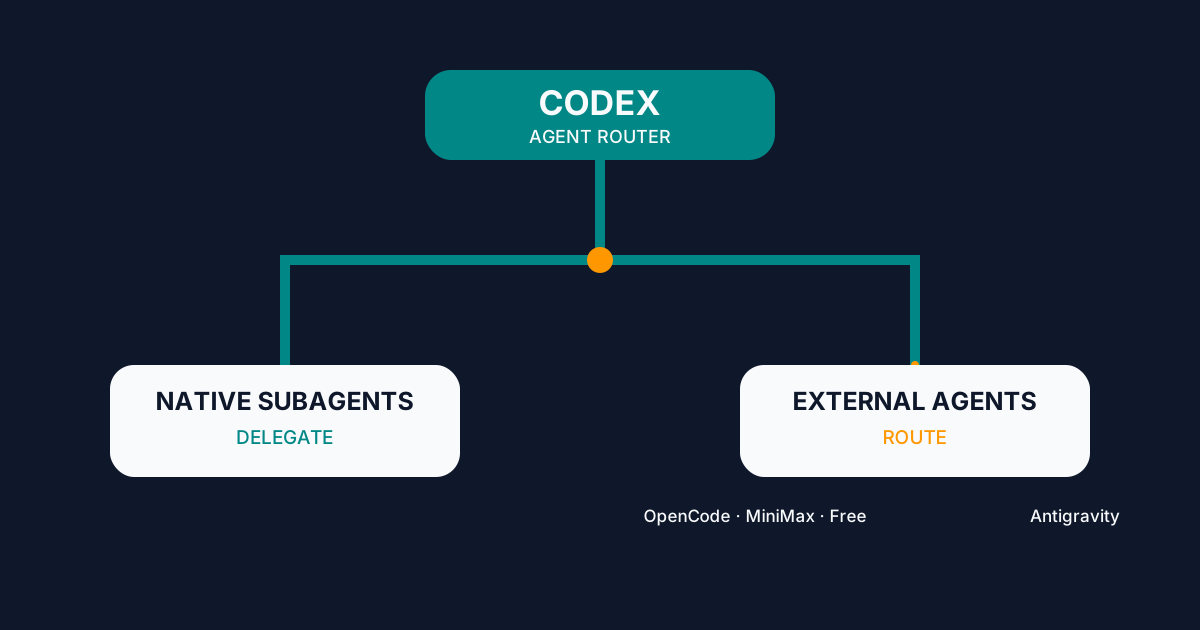
Codex Agent Router: Orchestrating External Agents
Configure Codex Agent Router to delegate to native subagents or route work to OpenCode, MiniMax, Big Pickle, and Antigravity from one interface.
AI Agent Goals: Loops That Iterate Until Done
How to hand an AI agent a verifiable goal and let it iterate alone: /goal, Ralph loops, turn budgets, independent verifiers and real failure modes.