
Automated Deployment to Google Play Store with GitHub Actions

Table of Contents
🚀 The Holy Grail of Android Development
Imagine this scenario: you finish a feature, merge to main, and go grab a coffee. 20 minutes later, your Project Manager says: “I’m already testing it on my phone.”
No opening Android Studio, no generating APKs manually, no fighting with Keystores, and no logging into the Google Play Console.
This is not magic; it’s Continuous Deployment (CD) well configured. Today we are going to build that pipeline step by step.
🏗️ Prerequisites (The Bureaucracy)
Before touching code, we need permissions. Google Play is very strict with security (and rightly so).
1. Google Play Console API Access
We need a “Service Account” (a robot user) that has permission to upload builds.
- Go to Google Play Console -> Setup -> API access.
- Create a new Google Cloud project (or select an existing one).
- Go to Google Cloud Console -> IAM & Admin -> Service Accounts.
- Create a Service Account and give it the Service Account User role.
- Create a JSON Key for that account and download it. GUARD IT WITH YOUR LIFE!
- Back in Play Console, find the account (email) in “Users & permissions” and grant Admin permissions (or at least Release Manager).
2. GitHub Secrets
Never upload the JSON or your Keystore to the repo. Use GitHub Secrets.
Go to Settings -> Secrets and variables -> Actions and add:
PLAY_STORE_JSON_KEY: The content of the JSON you downloaded.KEYSTORE_FILE_BASE64: Your.jksfile converted to Base64.- Tip: Use
base64 -w 0 my-key.jks > key_b64.txton Linux/Mac.
- Tip: Use
KEYSTORE_PASSWORD,KEY_ALIAS,KEY_PASSWORD: Your signing data.
⚙️ The Workflow: deploy.yml
We will use the excellent r0adkll/upload-google-play action (or the official gradle-play-publisher if you prefer).
name: Deploy to Play Store

on:
  push:
    tags:
      - 'v*' # Only deploy when creating a tag like v1.0.0

jobs:
  deploy:
    runs-on: ubuntu-latest
    steps:
      - uses: actions/checkout@v4

      - name: Setup Java
        uses: actions/setup-java@v4
        with:
          distribution: 'temurin'
          java-version: '17'

      # 1. Decode Keystore
      - name: Decode Keystore
        run: |
          echo "${{ secrets.KEYSTORE_FILE_BASE64 }}" | base64 -d > app/release.keystore

      # 2. Build App Bundle (AAB)
      # Note: We inject secrets as environment variables
      - name: Build Release AAB
        run: ./gradlew bundleRelease
        env:
          KEYSTORE_PASSWORD: ${{ secrets.KEYSTORE_PASSWORD }}
          KEY_ALIAS: ${{ secrets.KEY_ALIAS }}
          KEY_PASSWORD: ${{ secrets.KEY_PASSWORD }}

      # 3. Upload to Play Store
      - name: Upload to Play Store
        uses: r0adkll/upload-google-play@v1
        with:
          serviceAccountJsonPlainText: ${{ secrets.PLAY_STORE_JSON_KEY }}
          packageName: com.yourdomain.app
          releaseFiles: app/build/outputs/bundle/release/app-release.aab
          track: internal # Or 'production', 'alpha', 'beta'
          status: completed
          whatsNewDirectory: distribution/whatsnew
🔐 Signing APKs in Gradle (Without Hardcoding)
Your build.gradle must be prepared to read environment variables, not local files that don’t exist in CI.
// app/build.gradle.kts
signingConfigs {
    create("release") {
        // In CI we read the generated file. Locally, you can have a dummy file or properties.
        storeFile = file("release.keystore")
        storePassword = System.getenv("KEYSTORE_PASSWORD")
        keyAlias = System.getenv("KEY_ALIAS")
        keyPassword = System.getenv("KEY_PASSWORD")
    }
}
🧪 Release Strategies (Tracks)
Google Play has “tracks”. Your CD strategy should use them intelligently.
1. Internal Track (internal)
- Use: For QA and the dev team.
- Availability: Immediate (minutes).
- Trigger: Every merge to
developor nightly (cron).
2. Alpha/Beta Track
- Use: For “Dogfooding” (internal testing) or Public Beta Testers.
- Availability: Requires Google review (hours/days).
- Trigger: Merge to
release/*branch.
3. Production Track
- Use: The whole world.
- Availability: Exhaustive review.
- Trigger: Version tag (
v1.0.0) + Manual Approval (GitHub Environments).
⚡ Automating “What’s New”
Hate writing release notes in the Google console? You can automate it.
Create a folder distribution/whatsnew and put files like whatsnew-en-US.txt.
Pro Tip: Generate this file dynamically in CI based on commits.
      - name: Generate What's New
        run: |
          git log --format="- %s" $(git describe --tags --abbrev=0 HEAD^)..HEAD > distribution/whatsnew/whatsnew-en-US.txt
🛑 Common Errors (Troubleshooting)
- Error 403 (Permission Denied): Your Service Account doesn’t have permissions in Play Console. Check step 1.6.
- Version Code Conflict: Trying to upload
versionCode: 10when one equal or greater already exists.- Solution: Automate versioning (see versioning article).
- Corrupt Keystore: The base64 was copied wrong (with extra line breaks).
- Solution: Use
base64 -w 0so it’s a single line.
- Solution: Use
🎯 Conclusion
Automating deployment to Google Play Store is the difference between an “artisanal” process and an “industrial engineering” one. You eliminate human error, ensure build reproducibility, and most importantly, reclaim your time to keep creating value, not moving files.
You might also be interested in

Semantic Versioning in CI/CD: The Science of Continuous Delivery
Master semantic versioning in CI/CD pipelines. Learn to calculate versions automatically and ensure traceability in your Android deployments.
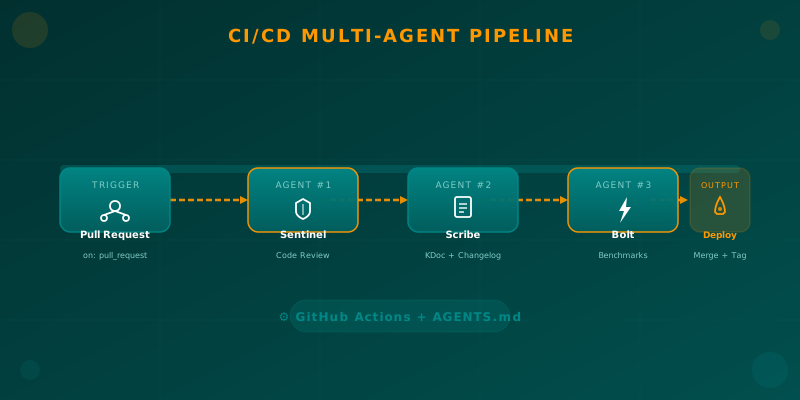
Orchestrating AI Agents in Your Android CI/CD Pipeline
Learn how to integrate specialized AI agents (code review, documentation, benchmarks) into your Android CI/CD pipeline using GitHub Actions and AGENTS.md.

GitHub Actions: The Engine of Your CI/CD
Learn the fundamentals of GitHub Actions to automate your workflows, from running tests to automated deployment.